07-2 이벤트 활용
- 이번 장에서 나오는 개념들은 입력양식과 관련한 내용을 많이 사용한다.
- 입력양식 (form) : 웹에서 사용자에게 정보를 입력 받을 때 사용하는 사용자 인터페이스(UI)
이벤트 모델
- 이벤트 모델이란? 이벤트를 연결하는 방법을 말한다.
- 표준 이벤트 모델: addEventListener()메소드를 사용, 현재 표준으로 사용하고 있는 모델
- 고전 이벤트 모델: onkeyup 등과 같은 형태로 시작하는 속성에 함수를 할당해 이벤트를 연결하는 방식
- 인라인이벤트 모델: 고전 이벤트 모델을 HTML요소에 직접 넣어서 이벤트를 연결하는 방식
- 모든 이벤트 모델의 이벤트 리스너는 첫 번째 매개변수로 이벤트 객체를 받는다.
키보드 이벤트
| 이벤트 | 설명 |
| keydown | 키가 눌릴 때 실행됩니다. 키보드를 꾹 누르고 있을 때도, 입력될 때도 실행됩니다. |
| keypress | 키가 입력되었을 때 실행. 하지만 웹브라우저에 따라서 아시아권의 문자를 제대로 처리하지 못하는 문제 |
| keyup | 키보드에서 키가 떨어질 때 실행 |
- keydown과 keypress 이벤트는 아사아권의 문자를 제대로 처리하지 못하는 문제가 있어 일반적으로는 keyup 이벤트를 사용
키보드 키 코드 사용하기
- 키보드의 어떤 키를 눌렀는지와 관련된 속성들이 따라온다.
| 이벤트 속성 이름 | 설명 |
| code | 입력한 키 |
| keyCode | 입력한 키를 나타내는 숫자 |
| altKey | alt키를 눌렀는지 |
| ctrlKey | ctrl키를 눌렀는지 |
| shiftKey | shift키를 눌렀는지 |
- 위의 속성은 해당키를 눌렀는지 여부를 불 자료형의 값으로 출력한다.
사용예시
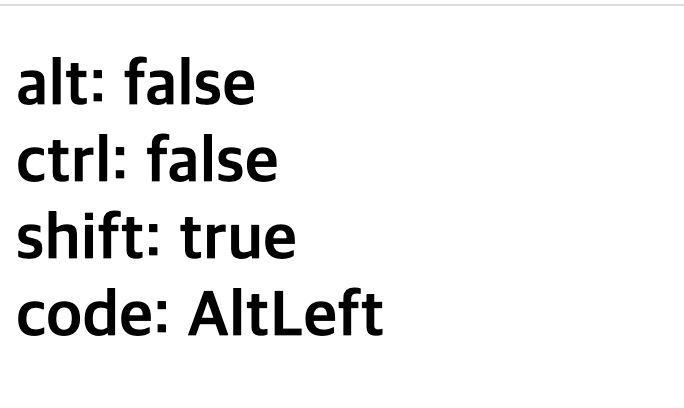
  <head>
    <title></title>
    <script>
      document.addEventListener('DOMContentLoaded', () => {
        const h1 = document.querySelector('h1')
        const print = (event) => {
          let output = ''
          output += `alt: ${event.altKey}<br>`
          output += `ctrl: ${event.ctrlKey}<br>`
          output += `shift: ${event.shiftKey}<br>`
          output += `code: ${typeof(event.code) !== 'undefined' ?
            event.code : event.keyCode}<br>`
        h1.innerHTML = output
        }

		// keydown과 keyup 시에 함수가 작동한다.
        document.addEventListener('keydown', print)
        document.addEventListener('keyup', print)
      })
    </script>
  </head>
  <body>
    <h1></h1>
  </body>
더 알아보기
code 속성 값
https://developer.mozilla.org/en-US/docs/Web/API/UI_Events/Keyboard_event_code_values
Code values for keyboard events - Web APIs | MDN
The following tables show what code values are used for each native scancode or virtual keycode on major platforms. The reason is that some browsers choose to interpret physical keys differently, there are some differences in which keys map to which codes.
developer.mozilla.org
keyCode 속성값
https://developer.mozilla.org/en-US/docs/Web/API/UI_Events/Keyboard_event_key_values
Key values for keyboard events - Web APIs | MDN
The tables below list the standard values for the KeyboardEvent.key property, with an explanation of what the key is typically used for. Corresponding virtual keycodes for common platforms are included where available.
developer.mozilla.org
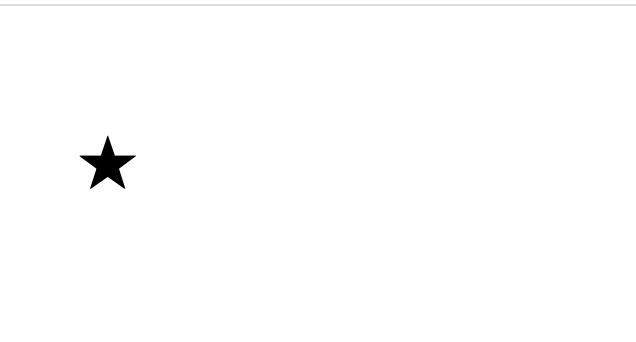
- 이러한 keyCode 속성값을 사용하여 별움직이기와 같은 게임도 만들수 있다.
예시
  <head>
    <title></title>
    <script>
      document.addEventListener('DOMContentLoaded', () => {
        // 별의 초기 설정
        const star = document.querySelector('h1')
        // position 을 'absolute'로 적용하면 전체화면상에서 절대적인 위치로 나타냄
        star.style.position = 'absolute'

        // 별의 이동을 출력하는 기능
        let [x, y] = [0, 0]
        const block = 20
        const print = () => {
          star.style.left = `${x * block}px`
          star.style.top = `${y * block}px`
        }
        print()

        // 별을 이동하는 기능
        // 키보드의 방향키가 keyCode 속성이 나타내는 숫자 37, 38, 39, 40으로 나타냄
        const [left, up, right, down] = [37, 38, 39, 40]
        document.body.addEventListener('keydown', (event) => {
          switch (event.keyCode) {
            case left:
              x -= 1
              break
            case up:
              y == 1
              break
            case right:
              x += 1
              break
            case down:
              y += 1
              break
          }
          print()
        })
      })
    </script>
  </head>
  <body>
    <h1>★</h1>
  </body>
이벤트 발생 객체
- 코드의 규모가 커지면서 이벤트 리스너 내부에서 변수에 접근할 수 없는 경우가 생김
- 이러한 경우에는 이벤트 리스너를 외부로 분리하게 되는 경우가 많아짐
- 외부로 분리된 이벤트를 발생시킨 객체에 접근하는 방법 2가지
- event.currntTarget 속성을 사용합니다.
화살표 함수와 전통적인 function 형태 모두 사용 가능 - this 키워드를 사용합니다.
전통적인 function 형태에만 주로 사용
- event.currntTarget 속성을 사용합니다.
- 라이브러리와 프레임워크에 따라 선호하는 형태가 다르기때문에 해당 라이브러리롸 프레임워크의 문서를 보고 어떤 형태가 더 일반적으로 사용되는지 확인후 활용
글자입력 양식 이벤트
- 사용자로부터 어떠한 입력을 받을 때 사용하는 요소
- input, textarea, button, select 태그 등을 얘기함
- 글자 입력 양식 이벤트를 활용하여 '단위 변환 프로그램', '이메일 양식 검사 프로그램' 등 다양한 어플리케이션을 만들 수 있다.
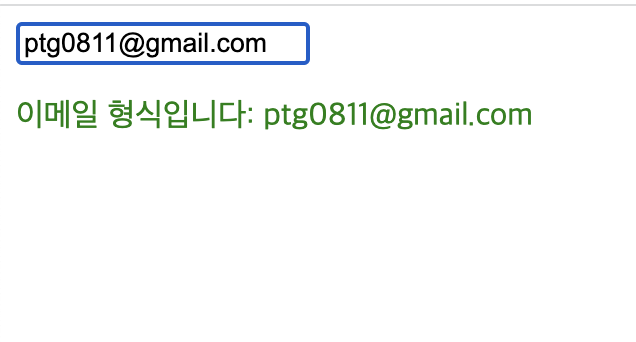
이메일 형식 확인하기 사용 예시
    <script>
      document.addEventListener('DOMContentLoaded', () => {
        const input = document.querySelector('input')
        const p = document.querySelector('p')
        const isEmail = (value) => {
          // 골뱅이를 갖고 있고 && 골뱅이 뒤에 점이 있다면
          return (value.indexOf('@') > 1)
            && (value.split('@')[1].indexOf('.') > 1)
        }

        input.addEventListener('keyup', (event) => {
          const value = event.currentTarget.value
          if (isEmail(value)) {
            p.style.color = 'green'
            p.textContent = `이메일 형식입니다: ${value}`
          } else {
            p.style.color = 'red'
            p.textContent = `이메일 형식이 아닙니다: ${value}`
          }
        })
      })
</script>- 일반적으로 유효성검사를 할때에는 정규 표현식을 많이 사용하므로 한번 알아볼 것.
드롭다운 목록 활용하기
- 일반적으로 select 태그로 구현
기본 select 태그

    <script>
      document.addEventListener('DOMContentLoaded', () => {
        const select = document.querySelector('select')
        const p = document.querySelector('p')

        select.addEventListener('change', (event) => {
          const options = event.currentTarget.options
          const index = event.currentTarget.options.selectedIndex

          p.textContent = `선택: ${options[index].textContent}`
        })
      })
    </script>
  </head>
  <body>
    <select>
      <option>떡볶이</option>
      <option>순대</option>
      <option>오뎅</option>
      <option>튀김</option>
    </select>
    <p>선택: 떡볶이</p>
  </body>
select 태그에 multiple속성을 부여하면 ctrl 또는 shift 키를 누르고 여러 항목을 선택할 수 있는 multiple select 태그 사용이 가능함
사용 예시

    <script>
      document.addEventListener('DOMContentLoaded', () => {
        const select = document.querySelector('select')
        const p = document.querySelector('p')

        select.addEventListener('change', (event) => {
          const options = event.currentTarget.options
          const list = []
          for (const option of options) {
            if (option.selected) {
              list.push(option.textContent)
            }
          }
          p.textContent = `선택: ${list.join(',')}`
        })
      })
    </script>
  </head>
  <body>
    <select multiple>
      <option>떡볶이</option>
      <option>순대</option>
      <option>오뎅</option>
      <option>튀김</option>
    </select>
    <p></p>
체크 박스 활용하기
checked 속성을 사용
change 이벤트가 발생했을 때 체크 박스의 체크 사태를 확인하고 setInterval()함수 또는 clearInterval()함수를 실행하는 예시

   <script>
      document.addEventListener('DOMContentLoaded', () => {
        let [timer, timerId] = [0, 0]
        const h1 = document.querySelector('h1')
        const checkbox = document.querySelector('input')

        checkbox.addEventListener('change', (event) => {
          if (event.currentTarget.checked) {
            // 체크 상태
            timerId = setInterval(() => {
              timer += 1
              h1.textContent = `${timer}초`
            }, 1000)
          } else {
            // 체크 해제 상태
            clearInterval(timerId)
          }
        })
      })
    </script>
  </head>
  <body>
    <input type="checkbox">
    <span>타이머 활성화</span>
    <h1></h1>
  </body>
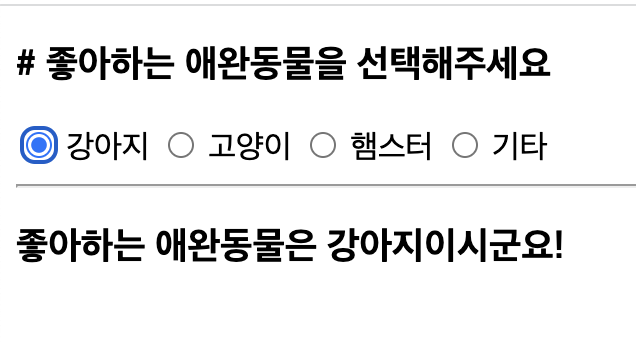
라디오 버튼 활용하기
사용예시
    <script>
      document.addEventListener('DOMContentLoaded', () => {
        // 문서 객체 추출하기
        const output = document.querySelector('#output')
        const radios = document.querySelectorAll('[name=pet]')

        // 모든 라디오 버튼에
        radios.forEach((radio) => {
          // 이벤트 연결
          radio.addEventListener('change', (event) => {
            const current = event.currentTarget
            if (current.checked) {
              output.textContent = `좋아하는 애완동물은 ${current.value}이시군요!`
            }
          })
        })
      })
    </script>
  </head>
  <body>
    <h3># 좋아하는 애완동물을 선택해주세요</h3>
    <input type="radio" name="pet" value="강아지">
    <span>강아지</span>
    <input type="radio" name="pet" value="고양이">
    <span>고양이</span>
    <input type="radio" name="pet" value="햄스터">
    <span>햄스터</span>
    <input type="radio" name="pet" value="기타">
    <span>기타</span>
    <hr>
    <h3 id="output"></h3>
  </body>
기본 이벤트 막기
어떤 이벤트가 발생했을 때 웹 브라우저가 기본적으로 처리해주는 것
예를 들어 웹브라우저는 이미지에서 마우스 오른쪽 버튼을 클릭하면 컨텍스트 메뉴를 출력하는데 이러한 것을 '기본 이벤트'라고 함
기본 이벤트를 제거할 때는 event 객체의 preventDefault() 메소드를 사용
이미지 마우스 오른쪽 버튼 클릭 막기 (불펌 방지 기능)
    <script>
      document.addEventListener('DOMContentLoaded', () => {
        const imgs = document.querySelectorAll('img')

        imgs.forEach((img) => {
          img.addEventListener('contextmenu', (event) => {
            event.preventDefault()
          })
        })
      })
    </script>
  </head>
  <body>
    <img src="http://placekitten.com/300/300" alt="">
  </body>
할일 목록 만들기
예제
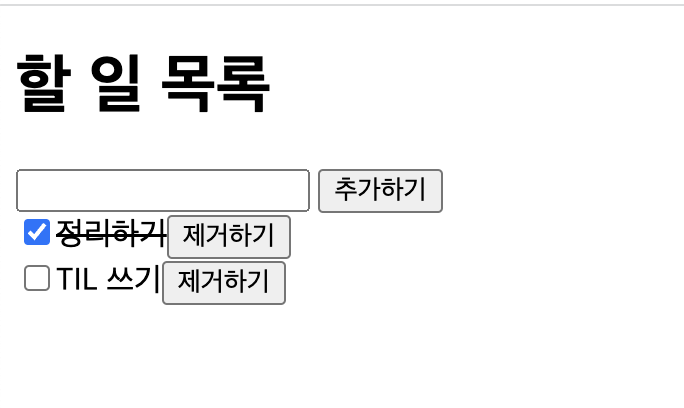
 <body>
    <h1>할 일 목록</h1>
    <input id="todo">
    <button id="add-button">추가하기</button>
    <div id="todo-list">


    </div>
  </body>
  <script>
    document.addEventListener('DOMContentLoaded', () => {
      // 문서 객체를 가져옵니다.
      const input = document.querySelector('#todo')
      const todoList = document.querySelector('#todo-list')
      const addButton = document.querySelector('#add-button')

      // 변수를 선언합니다.
      let keyCount = 0

      // 함수를 선언합니다.
      const addTodo = () => {
        // 입력 양식에 내용이 없으면 추가하지 않습니다.
        if (input.value.trim() === '') {
          alert('할 일을 입력해주세요.')
          return
        }

        // 문서 객체를 설정합니다.
        const item = document.createElement('div')
        const checkbox = document.createElement('input')
        const text = document.createElement('span')
        const button = document.createElement('button')

        // 문서 객체를 식별할 키를 생성합니다.
        const key = keyCount
        keyCount += 1

        // item 객체를 조작하고 추가합니다.
        item.setAttribute('data-key', key)
        item.appendChild(checkbox)
        item.appendChild(text)
        item.appendChild(button)
        todoList.appendChild(item)

        // checkbox 객체를 조작합니다.
        checkbox.type = 'checkbox'
        checkbox.addEventListener('change', (event) => {
          item.style.textDecoration
            = event.target.checked ? 'line-through' : ''
        })

        // text 객체를 조작합니다.
        text.textContent = input.value

        // button 객체를 조작합니다.
        button.textContent = '제거하기'
        button.addEventListener('click', () => {
          removeTodo(key)
        })

        // 입력 양식의 내용을 비웁니다.
        input.value = ''
      }

      const removeTodo = (key) => {
        // 식별 키로 문서 객체를 제거합니다.
        const item = document.querySelector(`[data-key="${key}"]`)
        todoList.removeChild(item)
      }

      // 이벤트 연결
      addButton.addEventListener('click', addTodo)
      input.addEventListener('keyup', (event) => {
        // 입력 양식에서 Enter 키를 누르면 바로 addTodo() 함수를 호출합니다.
        const ENTER = 13
        if (event.keyCode === ENTER) {
          addTodo()
        }
      })
    })
  </script>
좀더 알아보기 1
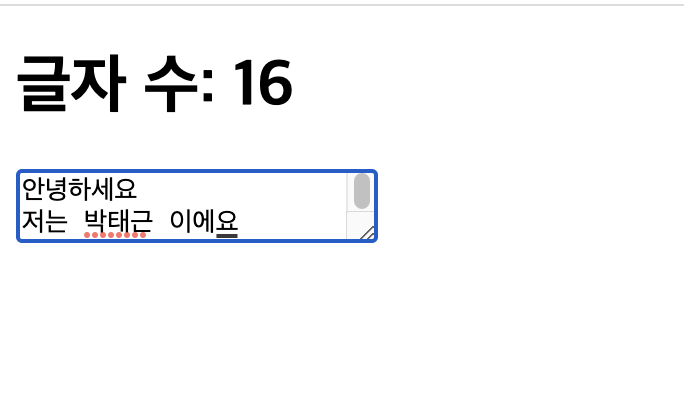
타이머로 구현한 남은 글자수 세기
키보드 이벤트 (keydown, keypress, keyup) 로 원하는 것을 제대로 구현 할 수 없는 경우가 많다.
그래서 트위터에서는 타이머를 사용해서 50밀리초마다 입력 양식 내부의 글자를 확인 해서 글자 수를 센다.
입력양식에 초점을 맞춘 경우(활성화)와 초점을 해제한 경우(비활성화)에 발생하는 이벤트를 사용하여 활성화된 순간부터 타이머를 돌리고 비활성화된 경우에는 타이머가 정지되도록 하였다.
사용예시
  <head>
    <title></title>
    <script>
      document.addEventListener('DOMContentLoaded', () => {
        const textarea = document.querySelector('textarea')
        const h1 = document.querySelector('h1')
        let timerId

        textarea.addEventListener('focus', (event) => {
          timerId = setInterval(() => {
            const length = textarea.value.length
            h1.textContent = `글자 수: ${length}`
          }, 50)
        })
        textarea.addEventListener('blur', (event) => {
          clearInterval(timerId)
        })
      })
    </script>
  </head>
  <body>
    <h1></h1>
    <textarea></textarea>
좀 더 알아보기2
localStorage 객체
웹 브라우저에 데이터를 저장하는 객체
localStorage처럼 웹 브라우저가 제공해주는 기능을 web API 라고 부릅니다.
web API 목록
https://developer.mozilla.org/en-US/docs/Web/API
Web APIs | MDN
When writing code for the Web, there are a large number of Web APIs available. Below is a list of all the APIs and interfaces (object types) that you may be able to use while developing your Web app or site.
developer.mozilla.org
'Hanghae99' 카테고리의 다른 글
| 221201 TIL 주특기 언어 스터디 3회차 (0) | 2022.12.02 |
|---|---|
| 221201 TIL Visual Studio Code에서 github 연결하기 (0) | 2022.12.02 |
| 221129 TIL 07 문서 객체 모델 1 (0) | 2022.12.01 |
| 221130 TIL 팀별 과제 정리 (0) | 2022.12.01 |
| 221130 TIL React 입문주차 4 (0) | 2022.11.30 |


