미니프로젝트가 얼마 남지 않았습니다. ㅠㅠ
프로젝트 기간동안 더 많은 것을 하기 위해서 ML model을 미리 만들어 보았습니다.
처음에는 호기롭게 DL modeling을 시도했으나, instance는 성능이 받쳐주지 못할것 같아서 일단 ML로 완성만 하기로 했어요!
dataset은 기본적으로 제공되는 iris 에요. 모델링이 주 목적은 아니기 때문에 엄청 화려한 코딩은 하지 않았습니다. (사실 못함 ㅋㅋ)
1. xgboost로 ML model을 만들어 줍니다.
import numpy as np
import pandas as pd
from sklearn.datasets import load_iris
from sklearn.model_selection import train_test_split
from xgboost import XGBClassifier
from sklearn.metrics import accuracy_score

# Iris 데이터셋 로드
iris = load_iris()
X = iris.data
y = iris.target

# 데이터를 학습용과 테스트용으로 분할
X_train, X_test, y_train, y_test = train_test_split(X, y, test_size=0.2, random_state=42)

# XGBoost모델 생성
model = XGBClassifier()

# 모델 학습
model.fit(X_train, y_train)

# 테스트 데이터에 대한 예측
y_pred = model.predict(X_test)

# 정확도 평가
accuracy = accuracy_score(y_test, y_pred)
print("Accuracy: %.2f%%" % (accuracy * 100.0))
이렇게 학습한 모델을 파일로 만들어 주면 됩니다.
2. 학습한 ML 모델을 배포용 파일로 만들어 줄거에요.
import joblib

# 학습한 모델을 파일로 저장
model_filename = 'iris_xgboost_model.joblib'
joblib.dump(model, model_filename)
print(f"Model saved as '{model_filename}'")
파일 형식은 joblib으로 해주었어요
pickle로도 가능하다고 하는데, joblib이 더 간편하다고 해서 바로 써주었습니다. 자세한 비교는 나중에 정리해보도록 하겠씁니다~.
참고로 모델마다 파일 형식이 다르니 유의해주세요.
3. 이제 flask로 배포하기 위한 server를 구축해줍니다.
파일은 app.py 와 index.html 정도로 간편하게 구축할 예정이에요.
index.html은 view로 결과를 보여주기 위한 용도로 간편하게 만들어 보았습니다.
app.py
from flask import Flask, render_template, request
import joblib
import numpy as np

app = Flask(__name__)

# 저장된 XGBoost 모델 불러오기
# 폴더 구조는 아래에 캡쳐화면을 참고해주세요
model_filename = './app/model/iris_xgboost_model.joblib'
loaded_model = joblib.load(model_filename)


@app.route('/')
def home():
    return render_template('index.html')


@app.route('/predict', methods=['POST'])
def predict():
    # HTML 폼에서 입력한 값 가져오기
    sepal_length = float(request.form['sepal_length'])
    sepal_width = float(request.form['sepal_width'])
    petal_length = float(request.form['petal_length'])
    petal_width = float(request.form['petal_width'])
    print(sepal_length, sepal_width, petal_length, petal_width)

    # 모델에 입력값 전달하여 예측 수행
    input_data = np.array(
        [[sepal_length, sepal_width, petal_length, petal_width]])

    predicted_class = loaded_model.predict(input_data)[0]

    # 예측 결과를 문자로 변환하여 반환
    class_names = ["Setosa", "Versicolor", "Virginica"]
    prediction_result = class_names[predicted_class]

    # 문바로 변환된 예측결과를 html로 보내줘요.
    return render_template('index.html', prediction_result=prediction_result)


if __name__ == '__main__':
    app.run('0.0.0.0', port=5001, debug=True)
index.html
<!DOCTYPE html>
<html>
  <head>
    <title>Iris Flower Prediction</title>
  </head>
  <body>
    <h1>Iris Flower Prediction</h1>
    <form action="/predict" method="post">
      Sepal Length: <input type="text" name="sepal_length" /><br />
      Sepal Width: <input type="text" name="sepal_width" /><br />
      Petal Length: <input type="text" name="petal_length" /><br />
      Petal Width: <input type="text" name="petal_width" /><br />
      <input type="submit" value="Predict" />
    </form>
    {% if prediction_result %}
    <h2>Prediction Result: {{ prediction_result }}</h2>
    {% endif %}
  </body>
</html>
폴더 구조
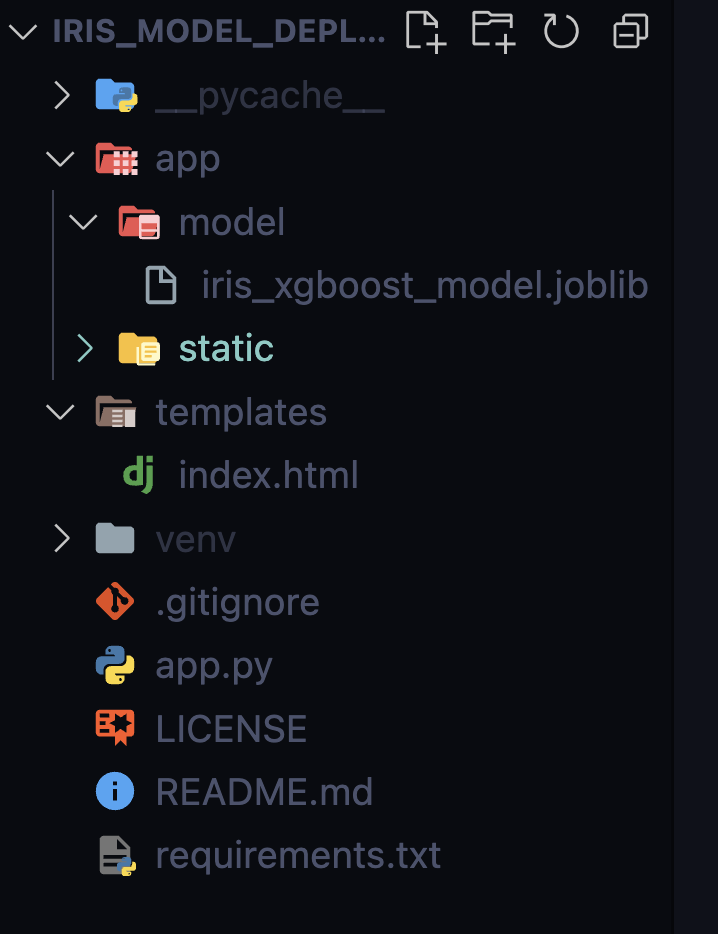
참고로 static 폴더에는 아무것도 들어있지 않아요. 보통은 css,js, img 파일등을 넣어줍니다.
중요한 점은 위에서 저장한 ML model 파일은 'model' 폴더에 넣어주어야 해요.
꼭 model 폴더가 아니어도 되지만 경로지정을 잘 해주어야 하니 주의해주세요.
이제 필요한 라이브러리를 설치한 다음에 'python app.py'를 실행하고
브라우저에 http://127.0.0.1:5001 주소를 쳐서 아래 화면이 뜨면 성공한것입니다.
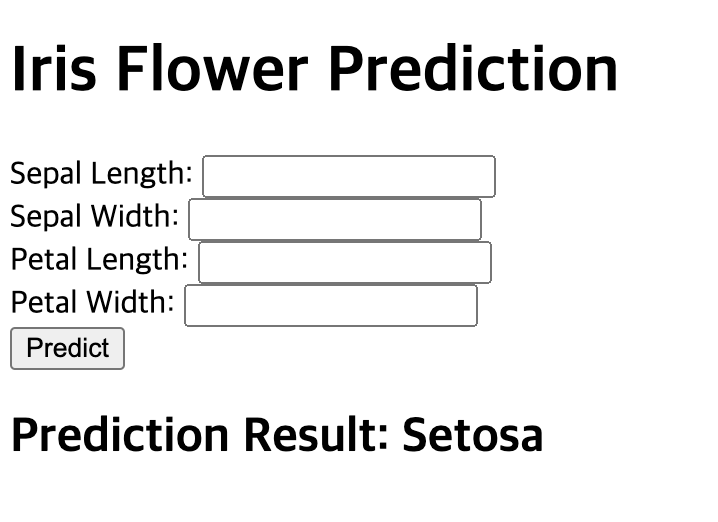
만약 이 화면이 뜨지 않는다면 flask가 제대로 실행되지 않았거나 구축한 가상환경에서 필요한 라이브러리를 설치해주지 않은걸거에요
ML model을 웹상에서 구동하기 위해서는 xgboost와 scikit-learn등 원래 ML model을 돌리기 위해 필요한 라이브러리를 설치해주어야 해요
다음 글에는 EC2에 파일을 복사하고 배포하는 법, 구동하기 위한 가상환경 세팅 방법에 대해서 정리해보겠습니다.
파일을 아래 깃헙 주소에서 복사하실수 있습니다.
도움이 되셨다면 하트와 star를 꾹 눌러주세요~
'Road to data engineer' 카테고리의 다른 글
| 프로젝트 준비3 : EC2로 mysql 배포하기 (0) | 2023.08.28 |
|---|---|
| 프로젝트 준비2 : EC2 instance에서 파이썬 프로그램을 실행하기 위한 가상환경 세팅 방법 (0) | 2023.08.28 |
| 객체지향 언어 이제 끝2 (0) | 2023.08.23 |
| 객체 지향 언어 이제 끝1 (0) | 2023.08.23 |
| 빅데이터 엔지니어링 프로젝트 준비하기2-2 - api data to nosql(mongodb) (0) | 2023.08.22 |


