오늘의 한일
1. styled component props 사용
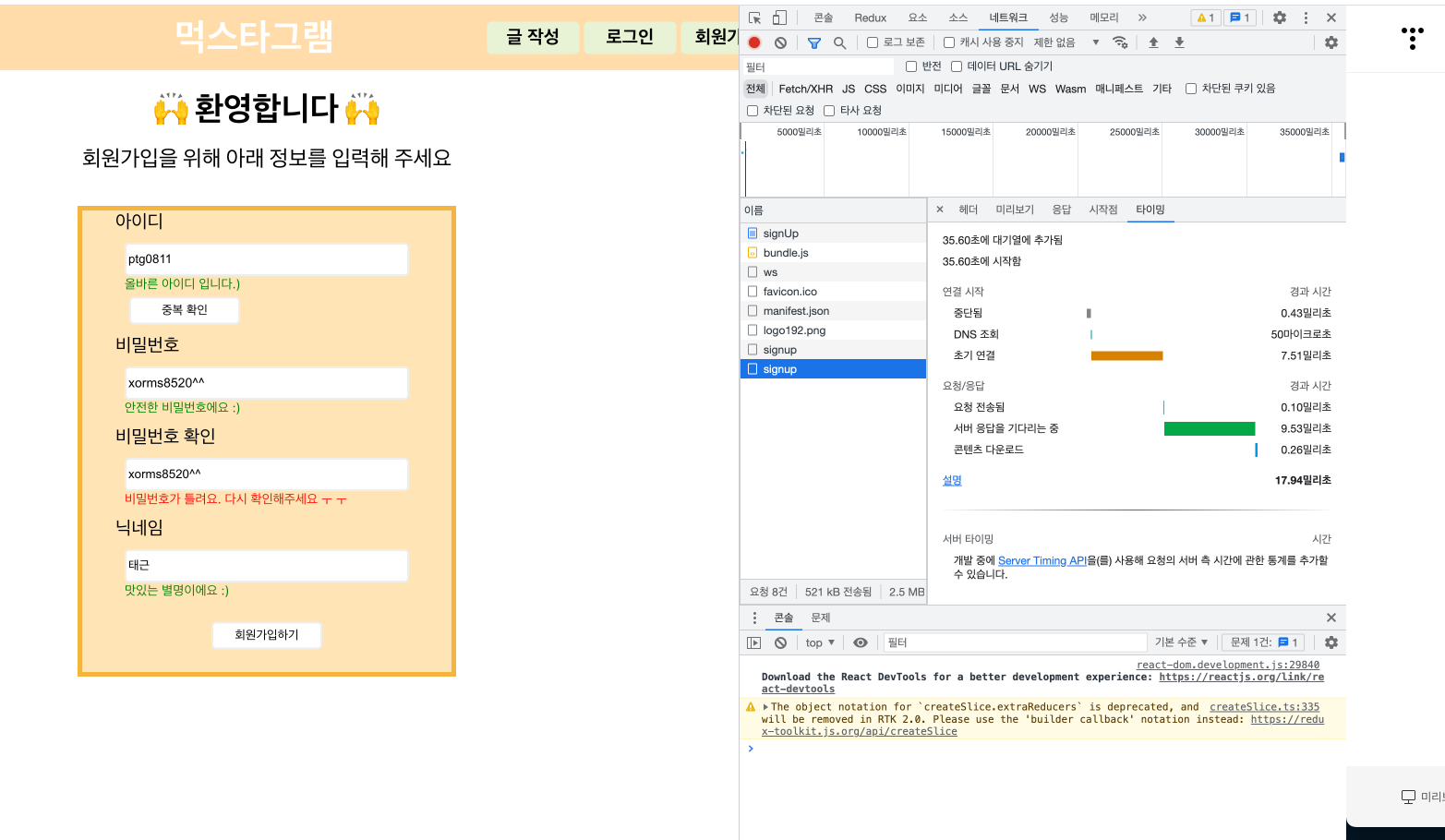
2. signup page 유효성 검사 설정
3. signup 기능 연결을 위한 api 설정
1. styled component props 사용
- 사용 방법
- elements 폴더에 파일을 만든다. - Button.js, Input.js, Text.js 등등
코드 예시
- elements 폴더에 파일을 만든다. - Button.js, Input.js, Text.js 등등
// Input.js
import React from "react";
import styled, { css } from "styled-components";
import flex from "../library/flex";

const Input = (props) => {
  return (
    <StInput {...props} disabled={props.disabled}>
      {props.children}
    </StInput>
  );
};

export default Input;

const StInput = styled.input`
  ${flex({})};
  border: 2px solid #eee;
  background-color: #fff;
  border-radius: 5px;
  height: 30px;
  width: 300px;
  background-color: ${({ bgColor, disabled }) => (disabled ? "#ddd" : bgColor)};
  cursor: pointer;

  ${(props) =>
    props.mg &&
    css`
      margin: ${props.mg};
    `};
  ${(props) =>
    props.ta &&
    css`
      text-align: ${props.ta};
    `};
  cursor: ${(props) => props.cursor};
  font-size: ${(props) => props.fs};
  font-weight: ${(props) => props.fw};
  color: ${(props) => props.color};
  line-height: ${(props) => props.lh};
  white-space: ${(props) => props.ws};
`;
2. 사용하려는 component에서 import 한다.
// styled
import styled from "styled-components";
import Input from "../elements/Input";
import Button from "../elements/Button";
import Text from "../elements/Text";
3. component에서 아래와 같이 사용한다.
<Text fs="20px" fw="400">
                아이디
              </Text>
              <InputBox>
                <Input
                  type="text"
                  typeName="userId"
                  onChange={onChangeUserId}
                  placeholder="🔑 아이디를 입력해주세요"
                />
                {userId.length > 0 ? (
                  <Text
                    fs="14px"
                    fw="400"
                    color={`${isUserId ? "green" : "red"}`}
                    className={`message ${isUserId ? "success" : "error"}`}
                  >
                    {userIdMessage}
                  </Text>
                ) : (
                  <Text fs="14px" fw="400" color="black">
                    영문자+숫자 조합으로 5자 이상 9자 미만으로 입력해주세요.
                  </Text>
                )}
                <Button type="button" size="medium">
                  중복 확인
                </Button>
              </InputBox>
2. signup page 유효성 검사 설정
1. 사용방법
1. state 생성
새로운 입력값을 받을 state를 생성
  // 패스워드 입력
  const [password, setPassword] = useState("");

  // 패스워드 메세지
    const [passwordMessage, setPasswordMessage] = useState("");

  // 패스워드 유효성 검사 결과값
    const [isPassword, setIsPassword] = useState(false);
2. onChangeHandeler 생성
새로운 입력값을 받아 1차적인 유효성 검사를 실행하고 메세지를 리턴
  const onChangePassword = useCallback((e) => {
    const passwordRegex =
      /^(?=.*[a-zA-Z])(?=.*[!@#$%^&*()_+=~₩])(?=.*[0-9]).{8,15}$/;
    const passwordCurrent = e.target.value;
    setPassword(passwordCurrent);

    if (!passwordRegex.test(passwordCurrent)) {
      setPasswordMessage("비밀번호 조건이 맞지 않습니다!");
      setIsPassword(false);
    } else {
      setPasswordMessage("안전한 비밀번호에요 :)");
      setIsPassword(true);
    }
  }, []);
3. 정규식 테스트
2차적으로 '회원가입' 버튼을 클릭했을때 입력값에 따라 결과를 리턴
const signUp = () => {
    if (userId === "") {
      window.alert("아이디를 입력해주세요!");
      return;
    }

    if (password === "") {
      window.alert("비밀번호를 입력해주세요!");
      return;
    }

    if (passwordConfirm === "") {
      window.alert("비밀번호를 확인해주세요!");
      return;
    }

    if (nickName === "") {
      window.alert("닉네임을 입력해주세요!");
      return;
    }

    if (!userIdCheck(userId)) {
      window.alert("아이디 형식을 확인해 주세요");
      return;
    }

    if (!passwordCheck(password)) {
      window.alert("비밀번호 형식을 확인해 주세요");
      return;
    }

    if (password !== passwordConfirm) {
      window.alert("비밀번호가 일치하지 않습니다.");
      return;
    }

    dispatch(
      __registerDB({ loginId: userId, password: password, nickname: nickName })
    );
  };
정규식은 shared 폴더에 regExp.js 파일을 만들어 모아둔다.
export const userIdCheck = (id) => {
  // 최소조건
  // 첫글자는 대소문자로
  // 5자 이상 9자 미만
  // 입력값 [대소문자,숫자]
  let regExp = /[a-zA-Z0-9]{5,8}$/;
  return regExp.test(id);
};

export const passwordCheck = (pw) => {
  // 최소조건
  // 8자 이상 16자 미만
  // 입력값 [특수문자,대소문자,숫자]
  let regExp = /^(?=.*[a-zA-Z])(?=.*[!@#$%^&*()_+=~₩])(?=.*[0-9]).{8,15}$/;
  return regExp.test(pw);
};
4. 메세지 작성
인풋박스 아래로 필요에 따라 메세지 등을 보여준다.
	<Text fs="20px" fw="400">
                비밀번호
              </Text>
              <InputBox>
                <Input
                  onChange={onChangePassword}
                  title="비밀번호"
                  typeTitle="password"
                  fs="14px"
                  fw="400"
                  placeholder="🔒 비밀번호 "
                />
                {password.length > 0 ? (
                  <Text
                    fs="14px"
                    fw="400"
                    color={`${isPassword ? "green" : "red"}`}
                    className={`message ${isPassword ? "success" : "error"}`}
                  >
                    {passwordMessage}
                  </Text>
                ) : (
                  <Text fs="14px" fw="400" color="black">
                    숫자+영문자+특수문자 조합으로 8자리 이상 입력해주세요.
                  </Text>
                )}
              </InputBox>
3. signup 기능 연결을 위한 api 설정
- env 파일에
"REACT_APP_URL=http://3.39.240.76:80/api " 이렇게 입력해서
axios.post(`${process.env.REACT_APP_URL}/signup`) 이런식으로 가져다가 쓰면 된다고 한다. - 아직은 api 통신이 제대로 되지 않는다.
- 요청은 보냈으나 응답이 없는 현상 발생 -> 백측에서 서버 점검해보기로 하였음.
'Hanghae99' 카테고리의 다른 글
| 221218 WIL 항해99 5주차 주특기 심화주차 (0) | 2022.12.18 |
|---|---|
| 221218 TIL 미니프로젝트 3 (0) | 2022.12.18 |
| 221216 TIL 미니프로젝트 1 (0) | 2022.12.17 |
| 221211 WIL 항해99 4주차 (0) | 2022.12.11 |
| 221208 TIL 언어스터디 4회차 (0) | 2022.12.09 |

